Return to the Home Page

PyMathcad Worksheet

A Mathcad Prime style calculation sheet written in Python with PyQt5 and pint.
Math regions carry units, user functions, vectors and if checks, and the sheet recalculates as you type.
It opens Mathcad Prime .mcdx files, embeds Excel tables and prints the sheet to an A4 PDF for the report.

Download

Calculation Steps

01

See Details

Units
(Values with Units)

Numbers are typed with units such as kg, kN or MPa and the result is shown in the unit written after the equal sign.

02
See Details

Functions
(User and Logic)

Defines functions like SRSS(a, b, c) on the sheet and uses if() to print O.K or N.G for each check.

03
See Details

Arrays
(Vectors and Sums)

Builds vectors with matrix(), reads one row with T[k] and applies length, max, min and sum to the whole set.

04
See Details

PDF Output
(A4 Worksheet)

Places regions on a 0.5 cm grid on A4 pages and exports the finished sheet as a high-resolution PDF.
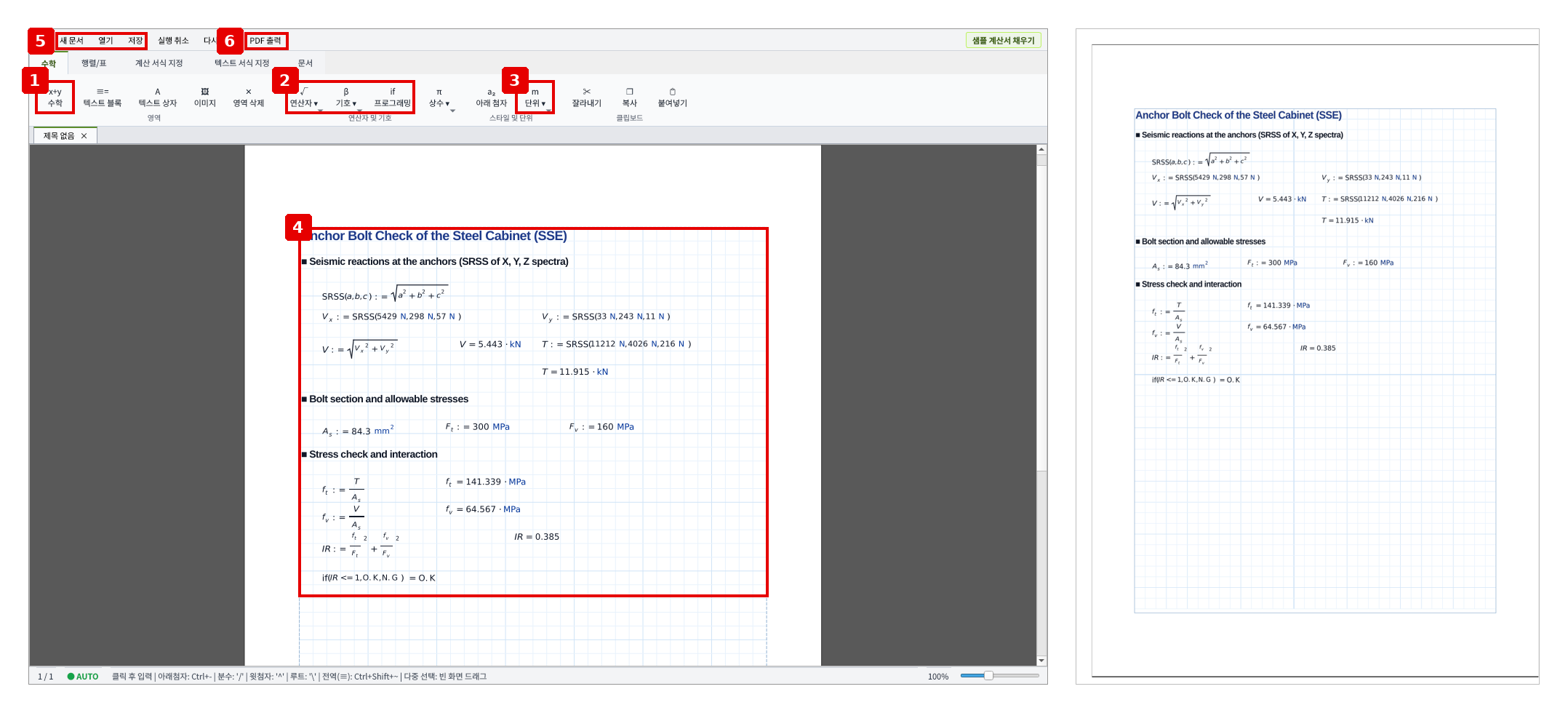

How to Use it?

01

Click the sheet where the region should go and press Math, then type a definition such as m := 412 kg.

02

Use the Operators, Symbols and Programming menus, or / ^ and \ keys, for fractions, powers, roots and Greek letters.

03

Pick a unit from the Units menu. Type a name followed by = and a unit, such as F = kN, to show the result in that unit.

04

Arrange regions on the grid. Global definitions with ≡ are solved first and the rest from top to bottom, so every change recalculates at once.

05

Save the sheet as .mcalc, open it again later, or open a Mathcad Prime .mcdx file and paste regions copied from Mathcad.

06

Press PDF Output to print every page to an A4 PDF that matches the screen, ready to attach to the report.